Ecommerce Platform | Rooms | Creating a promo code
🔍 Summary
This guide explains how to create and manage room promo codes for your hotel via your ecommerce platform. Promo codes let you offer discounts on specific room or rate types, or booking periods to attract more guests and boost occupancy.
Please note: This feature is currently live for Guestline integrations only.
❓ Likely Scenario
You’ve launched your booking platform and want to run a limited-time promotion for rooms. For example, you may want to offer a discount on weekend stays or a festive season deal, and need a straightforward way for guests to apply a promo code at checkout.
🛠️ Process Overview
Promo codes are set up within your ecommerce platform and applied by guests during checkout on your booking site.
When creating a promo code, you can configure the following:
- Promo Name – A short, memorable code guests will enter to claim the discount.
- Active Start and End Dates – Define the period when the promotion is valid.
- Active Checkbox – Choose whether the promo is live immediately.
- Discount Type – Offer either a percentage off or a fixed monetary discount.
- Target – Apply the discount to all rooms, a specific room type, or a specific rate.
- Arrival Start and End Dates – Set which booking dates the discount can be used for.
- Days of the Week for Arrival – Restrict the promo to certain days, such as weekdays or weekends.
This ensures you have full control over when, where, and how the promo codes are applied.
✅ Step-by-Step Instructions
1. Log into your ecommerce platform.
2. Navigate to the Promo Codes section:
3. 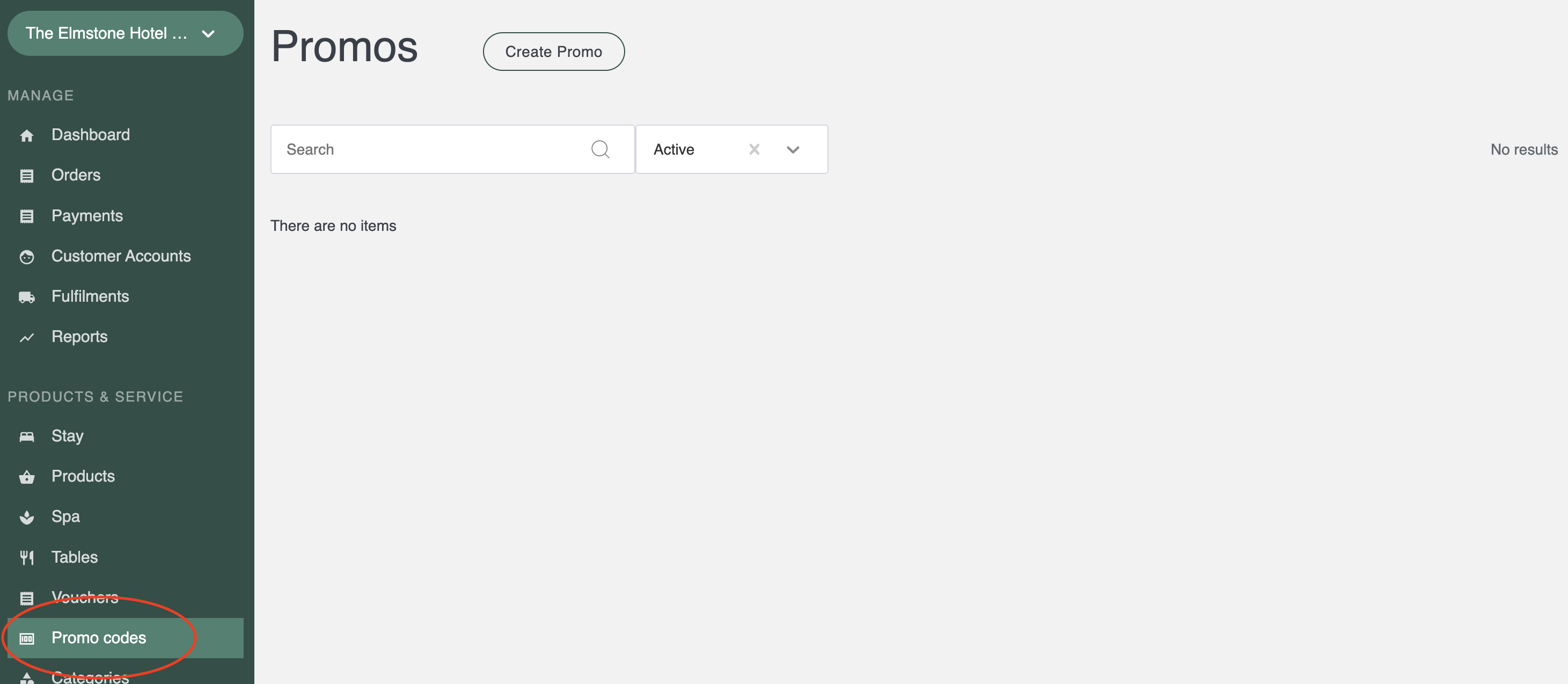
4. Click ‘Create Promo Code’ at the top of the screen.
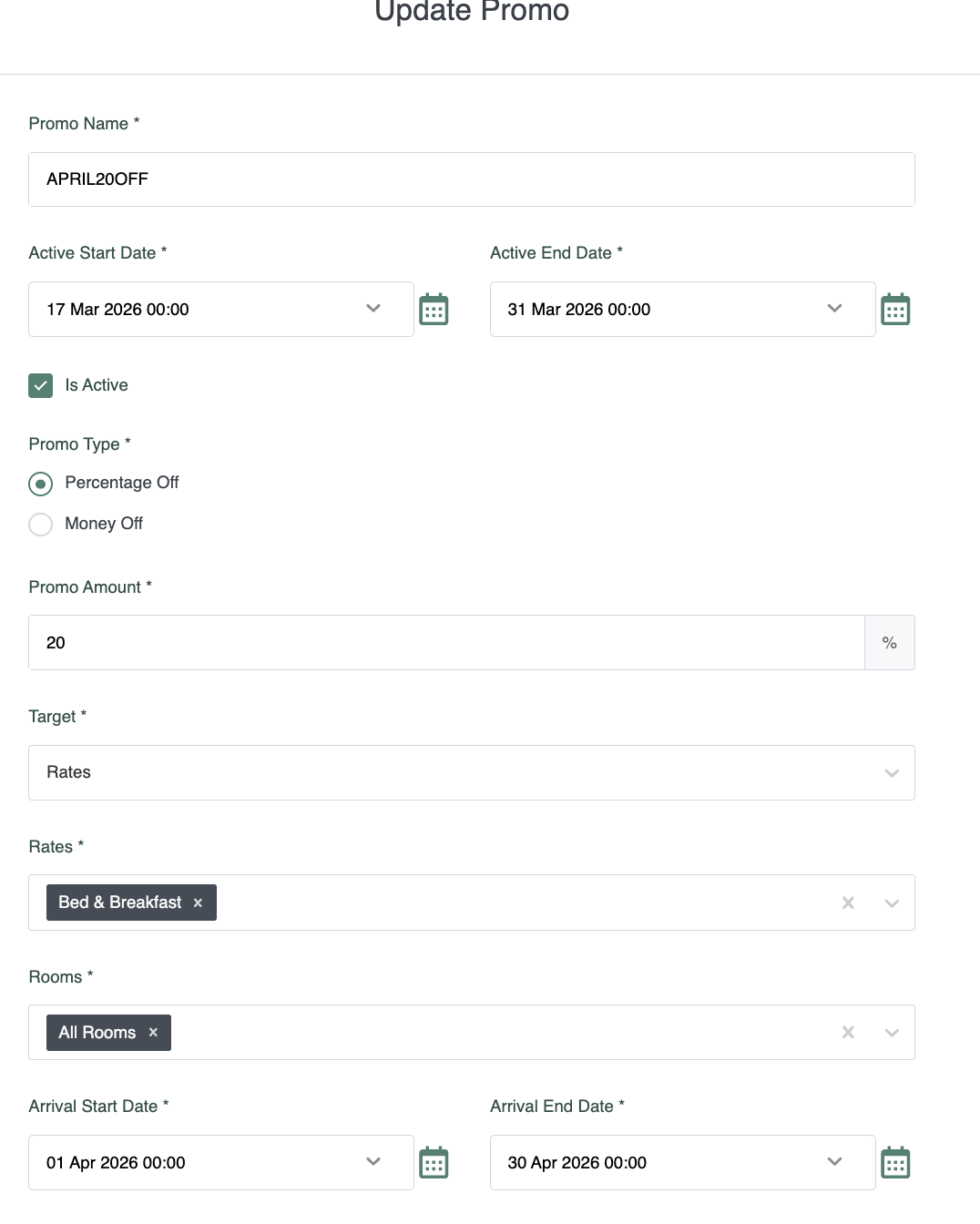
5. Enter your desired code in the ‘Promo Name’ field. Example: APRIL20
6. Use the ‘Active Start Date’ and ‘Active End Date’ fields to define when the promo runs.
7. Choose either ‘Percentage Off’ or ‘Money Off’ depending on the type of discount you want to offer.
8. In the ‘Target’ dropdown, select which items the promotion applies to. Some selections may show additional options.
9. Decide if the promo code should be active immediately, by ticking the Active checkbox.
10. 
7. Click 'Save Changes' so it's ready for guests to use at checkout from the Active Start Date.
🧠 Important Notes
- Promo codes must be one word in capital letters, this can include letters and numbers.
- We would recommend testing the promo code on the storefront to ensure it applies correctly.